Your assets. Organized, automated, and under your control.
Customizable
Comes with hooks, lifecycle events, UI plugins to tailor-make the product experience.
Exabyte scale
Architected on top of fault-tolerant scalable serverless services - easily handles exabytes of assets.
Governance & compliance
Your assets are stored inside your cloud, under your governance and control.
Organize and share assets
Modern editorial UI allows for great asset organization, and comes with powerful sharing capabilities.
Trusted by teams that outgrew traditional CMS platforms.
From Fortune 500 enterprises to fast-scaling SaaS platforms, Webiny powers mission-critical content operations across industries.
An asset management system you can build on top
Extend it with custom workflows, metadata schemas, and APIs - all using the same TypeScript framework as the rest of Webiny.
Control assets programmatically
Manage uploads, transformations, and delivery through Webiny's GraphQL and TypeScript APIs. Query, tag, or update metadata at scale - or trigger automations directly from lifecycle hooks.
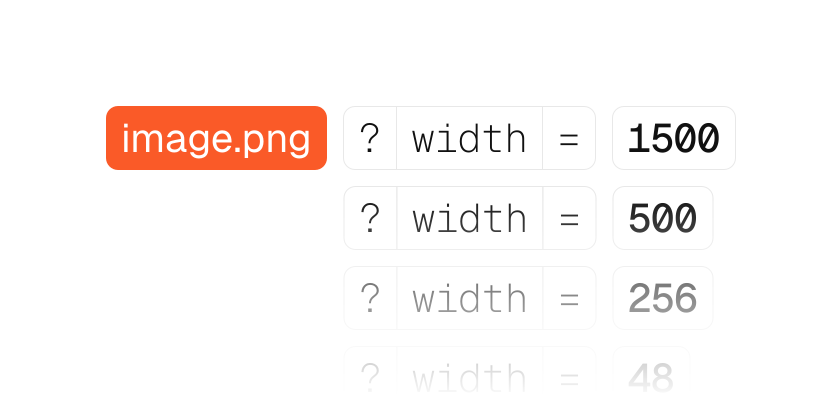
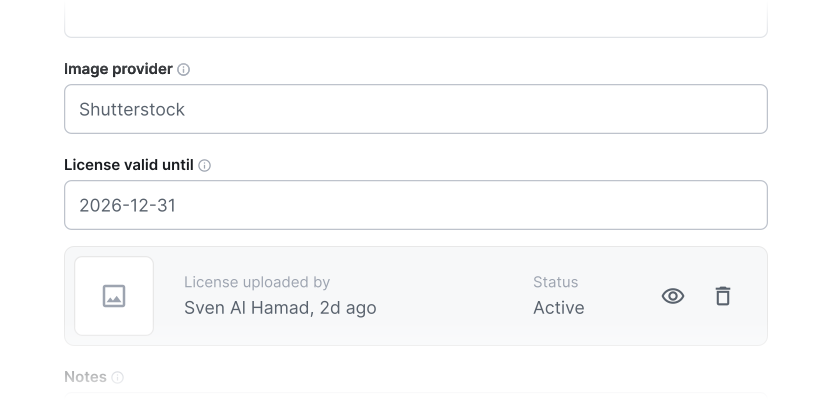
Define custom metadata
Add your own metadata fields and validation rules to any asset. Use them to store context-specific details, automate processing, or improve search and filtering - all defined as code, versioned, and deployed through CI/CD.
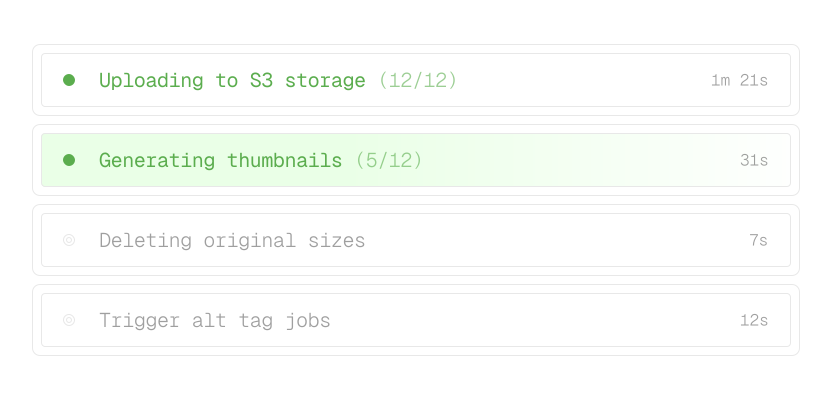
Automate workflows
Trigger actions on any lifecycle event - upload, update, or delete. Run background jobs, transformations, webhooks, or queues directly inside your cloud to sync assets, generate thumbnails, video renditions or notify external systems - no extra services required.
Built-in CDN
Webiny File Manager runs on a fully serverless architecture designed for enterprise scale. Assets are automatically optimized and distributed through a global CDN - so you get instant performance, zero infrastructure maintenance, and effortless scaling.
Multi-tenanted
Host thousands of isolated asset libraries within a single Webiny instance — ideal for multi-brand or multi-client setups.
Granular Access Control
Control which users and teams can access which assets by utilizing folder-level permissions.
AI-Powered Tagging
Automatically generate tags, alt text, and categories to make search effortless.
Customizable Admin UI
Make File Manager feel like an in-house developed system - extend its interface, add/remove buttons, customize lists and similar by using Webiny’s design system UI components.
Self-hosting that feels like SaaS
Webiny Admin is self-hosted inside your own AWS account. It’s a fully serverless architecture. Your DevOps team doesn’t need to worry about scaling or updating resources - it’s all handled by AWS for you, and the deployment is fully automated. As for hosting the pages you’ve built with Webiny - you can use any cloud anywhere to do that. It’s fully cloud agnostic.
Want to know more? See what’s under the hood, how it’s built & architected, and how it can fit your project.
Everything in its place
A clean media library with folders, tags, powerful search, and instant previews—plus roles and audit logs so nothing goes missing.
Folders & Sub-folders
Keep assets organized with a structure that matches your projects. Easily move or rename folders without breaking existing links.

Bulk Actions
Bulk upload, move, tag, or delete multiple assets at once. Perfect for large content libraries or seasonal campaign updates.

Powerful search
Easily filter and search across tags, titles, and any custom metadata fields. Scope your search to a folder or sub-folder for granular results. Saves time by quickly finding the asset you’re after.

Visual Previews
Preview images, videos, and documents directly in the interface - no downloading required. Thumbnails, and quick info make browsing effortless.

Access Control & Permissions
Restrict who can upload, edit, or delete within specific folders. Ensure sensitive assets stay protected while collaboration remains smooth.

It’s more than file storage
Webiny File Manager isn`t just where your assets live - it’s how they move, scale, transform and stay organized as you grow.
From a few files to petabytes of media, it’s built to keep order, without ever slowing you down.
Built for developers who care how things work, and editors who care that they always do.
Whats included
Discover the powerful features that make Webiny the ideal choice for building serverless applications.
Native agent-assisted development supported with agent-specific documentation for richer context and better code generation.
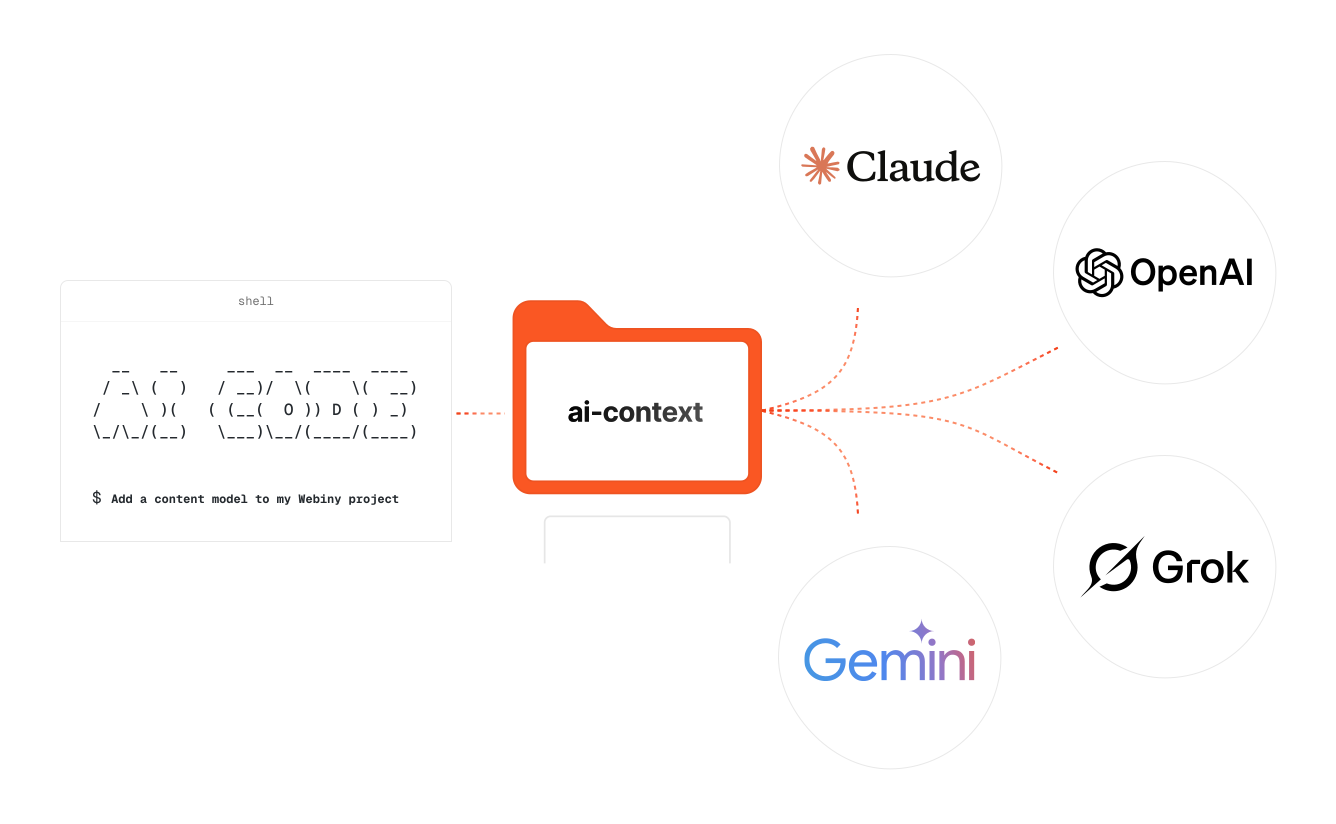
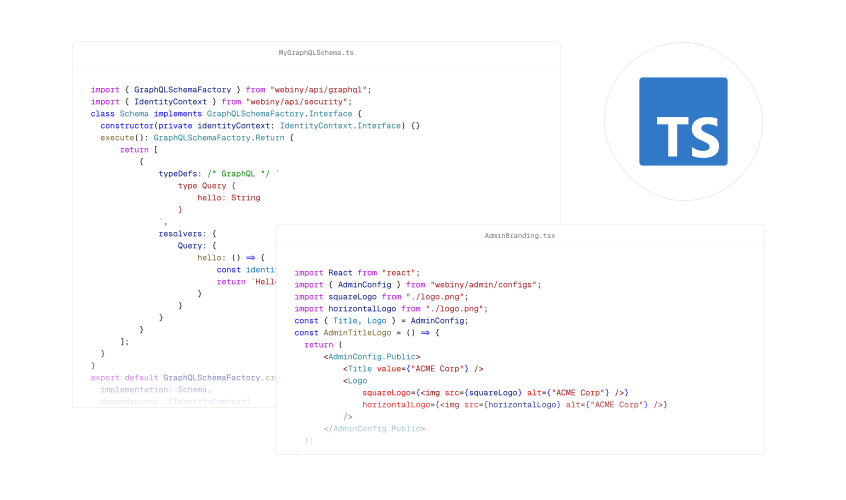
Great developer experience with strong typing, auto-completion, and advanced IDE support out of the box.
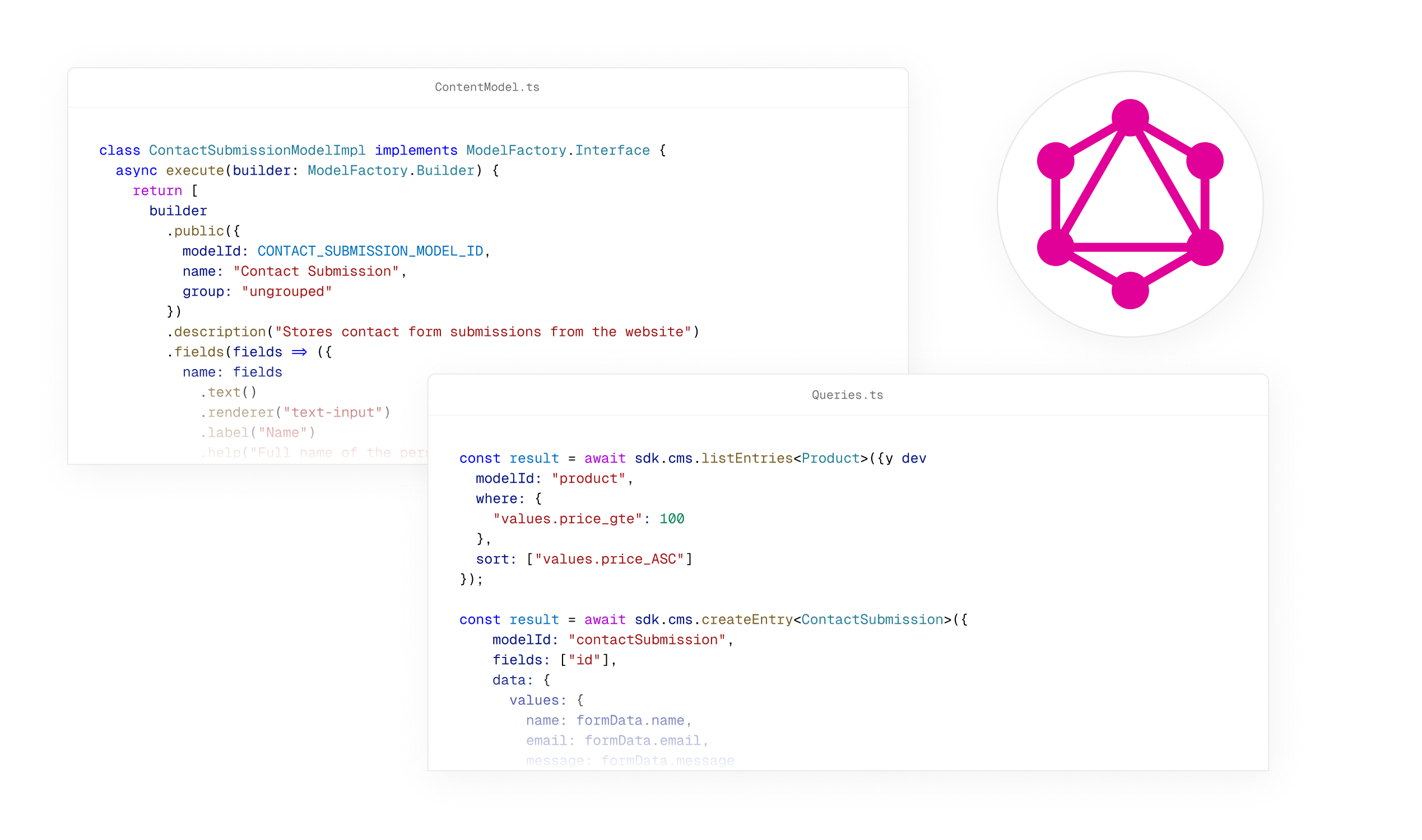
Interact with your content and data through a powerful, flexible, and extensible GraphQL API or the programmable SDK.
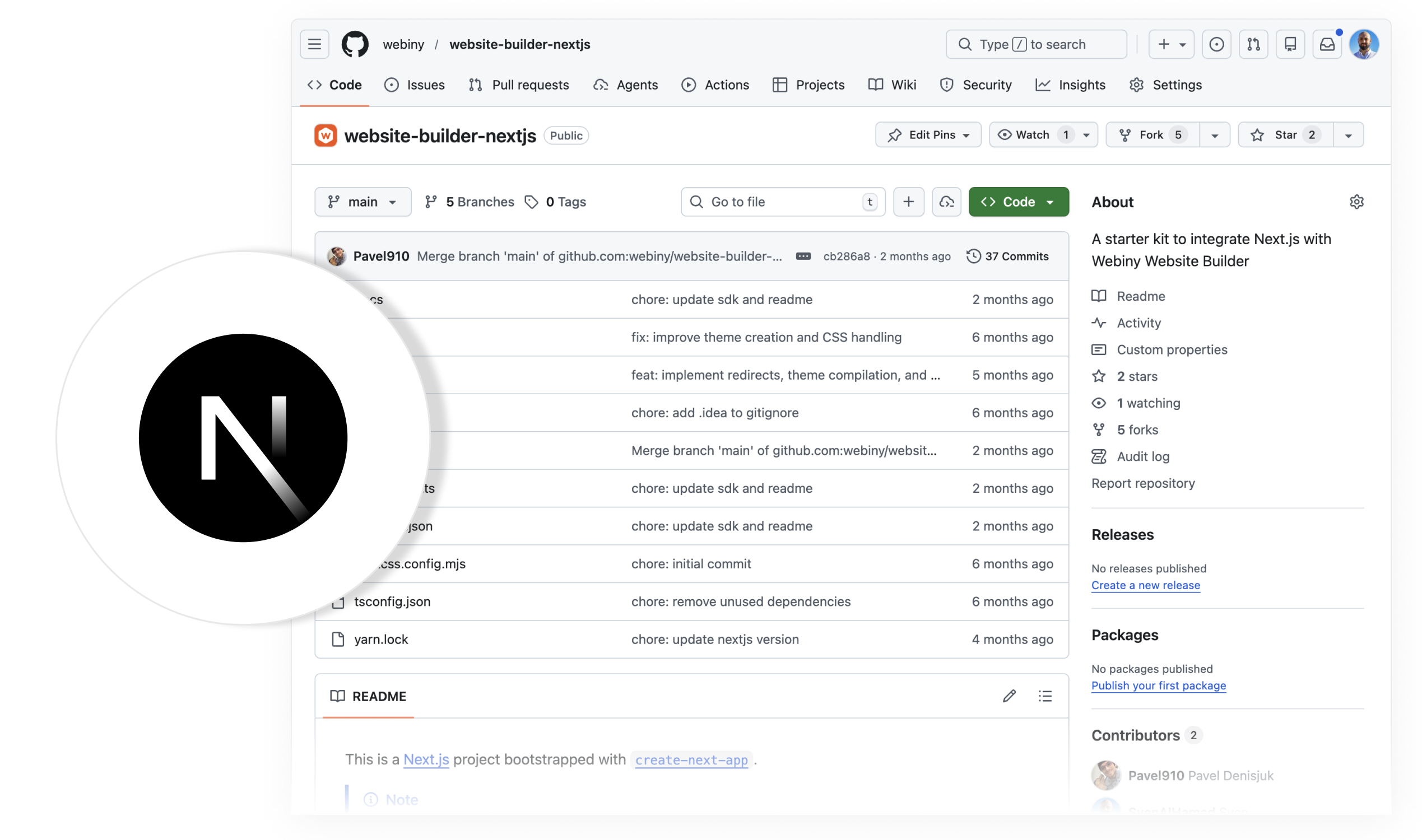
Get started quickly with our NextJS Starter Kit, featuring pre-built components and templates to accelerate your development process.
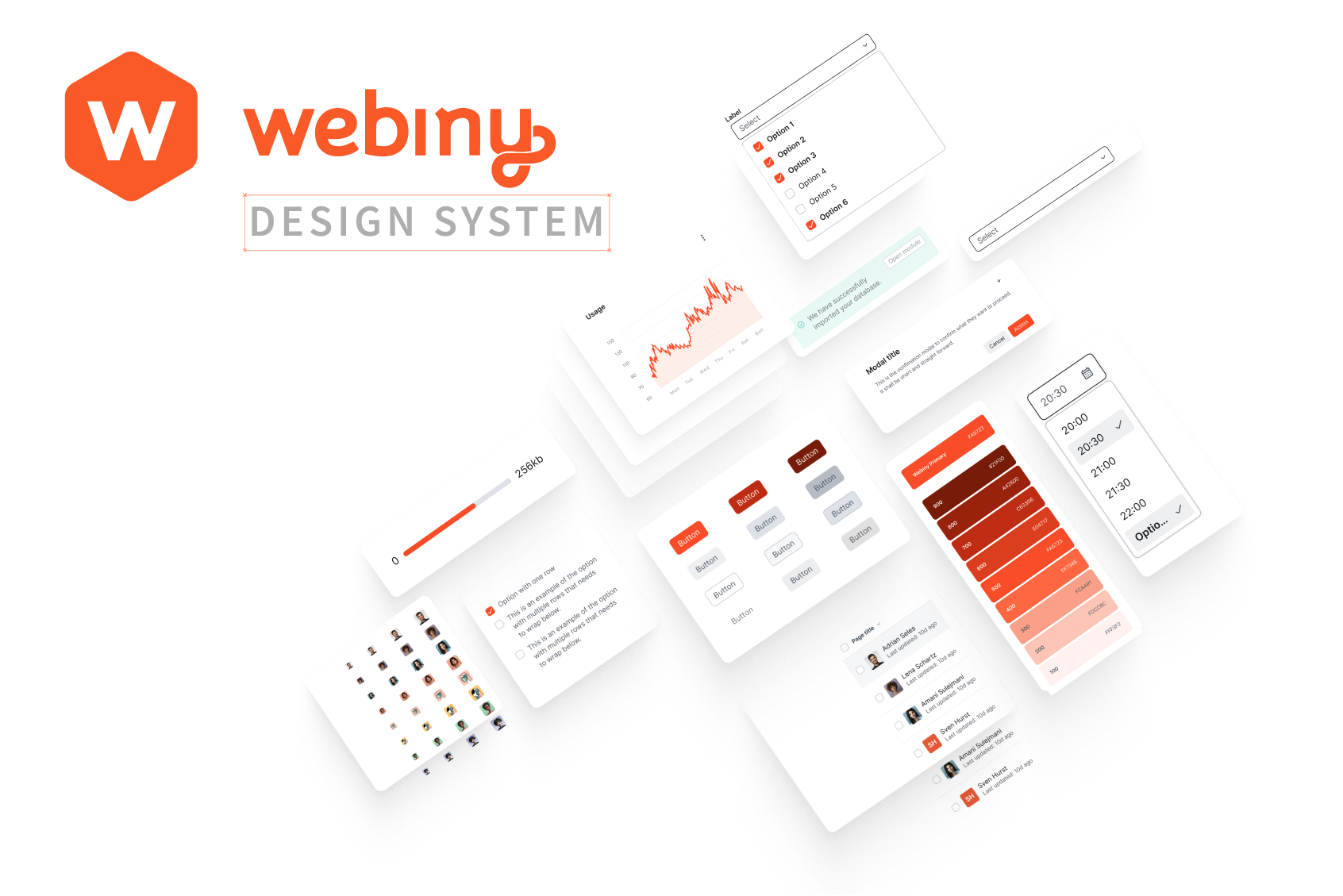
Build consistent and visually appealing user interfaces with our comprehensive Design System, which includes reusable components and style guidelines.
Master Webiny with our Learn Webiny Course, offering in-depth tutorials and hands-on projects to enhance your skills.