Heads up! This article was written before Webiny 6.0 was released and may contain outdated information.

Swapnil M Mane
Heads up! This article was written before Webiny 6.0 was released and may contain outdated information.
Webiny is the AI-programmable CMS that gives enterprises full control. Build, extend and automate your content operations with a platform designed to be shaped by both developers and AI agents.

Lambda Layer is a true gem in the Lambda function realm. It provides a convenient way to package your libraries and other dependencies that can be used with the Lambda functions.
Our open-source project,
By the time you finish reading this article, you will know how to create and use Lambda layers. As an example, we will create a sharp library Layer and use it in a Lambda function to create thumbnail images.
In this tutorial, we will create a Lambda function that will create a thumbnail image using the sharp library. This library will be packaged into the Lambda function using a
The workflow will be like this, for each image file uploaded to an S3 bucket (source bucket), the lambda function will be invoked. It will read the image object from the source S3 bucket, create a thumbnail image, and save it to the target S3 bucket.
Let’s start by creating two buckets, the source and the target. As mentioned earlier, for each image file uploaded to a source bucket, the Lambda function will create a corresponding thumbnail image and save it in the target S3 bucket.
Please follow these steps to create S3 buckets.
The target bucket name should be source-bucket-name plus suffixed by -resized . For example, if the source bucket is named mybucket then the target bucket should be named as mybucket-resized. Please follow this naming convention because we will be using this naming logic in the Lambda function.
Now let’s create an IAM policy that specifies the permissions for the Lambda function. The Lambda function must have permission for the following operations:
mybucket with the name of the source bucket that you created previously.{
"Version": "2012-10-17",
"Statement": [
{
"Effect": "Allow",
"Action": [
"logs:PutLogEvents",
"logs:CreateLogGroup",
"logs:CreateLogStream"
],
"Resource": "arn:aws:logs:*:*:*"
},
{
"Effect": "Allow",
"Action": [
"s3:GetObject"
],
"Resource": "arn:aws:s3:::mybucket/*"
},
{
"Effect": "Allow",
"Action": [
"s3:PutObject"
],
"Resource": "arn:aws:s3:::mybucket-resized/*"
}
]
}
AWSLambdaS3Policy.Create the
lambda-s3-roleHere comes the special part of this tutorial. We will create the
You will perform this part of the tutorial on your machine. Please ensure you have npm installed (we will need the npm to install the sharp package).
nodejs.sharp dependency in the nodejs directory by running the following commands:npm install
SHARP_IGNORE_GLOBAL_LIBVIPS=1 npm install --arch=x64 --platform=linux sharp
After this step, you will get the following directory structure:
nodejs
|- node_modules
|- package-lock.json
.zip file archive of the nodejs directory.zip -r nodejs.zip nodejs
aws lambda publish-layer-version --layer-name sharp --description "Sharp dependency for image transformation" --zip-file fileb://nodejs.zip --compatible-runtimes "nodejs14.x" --region "us-east-1" --output "json"
After successful execution of the command above, you will see an output similar to this one.
Please note the LayerVersionArn, we will use it while creating the Lambda function.
{
    "Content": {
        "Location": "https://prod-04-2014-layers.s3.us-east-1.amazonaws.com/snapshots/400803493251/sharp-539dd937-e29c-4418-bb52-2089f3945afc?versionId=4AMhQSZjY3uw3WI85Jcbf7j7Wj1x1X9i&X-Amz-Security-Token=IQoJb3JpZ2luX2VjEJz%2F%2F%2F%2F%2F%2F%2F%2F%2F%2FwEaCXVzLWVhc3QtMSJHMEUCIQDu5lMXWxGc7ydyD6HbmtJk2tnqLLxfRbCYqP7tAwi8wAIgAt3KpyhdECs9I7a2mSGNPjk1n4fq1BKjA7iOmBxOquUq%2BgMIRBAAGgw3NDk2Nzg5MDI4MzkiDOj9vGzyeEXkicvNUirXA9YvAlIvZPE3WdpgIYp51YCl28ISR4eL93paFfqBC0IguHOz%2BctOG2P5MwSc2Vj10UVBUBE4qTiGXYTbB3Gk4jCzTvgDEN90fXdMqQYWXCd8zDpq6OIcZ59qVTQPIFdjo2JZ8U3Tfu68BkIynFNLIiX4Y2WvBqxpJoFUlrmOcU4%2FtuXhSmiW6E7xyQus%2F%2BTq3A2n7JaJ2XgKOKPyINyOOBD3ZsonHjiZw0Djtjk7IgvwMjWVLb6Gn73c%2BG9bLKsHHW7aUnRaNEYSdhWejPpz1QEUlcOKpAkLI87kAgTMPCsljZMujUgWxozAth76hWebjXoE7OHUFx870jscKhpMH2DfJhaOCOsmyme69jpqc4%2FEN6jT2WGjIG42xlfUnxB90DpNBjkPguXFyghOHFlhR07bp9Rom0oW1XOriN9jnbxSZqyQsqDFwbrua4oKtOcJJrzDnUGmhKAlWPMkwE81wDyxXSB%2BGYlYQb%2F%2BXScqvqsieBtIpN5KOfAlB0VuoN17gi5BFXsP5ePaGeJPZ5MJ9COQtm6nXdvclUc8ENc0xPfw0l0485%2BVWe%2BzME%2FIIB0Sclg8TuyNSNcqrSxVxb7VVZMZfFrmMpXpU2FD1chXDGTv1tOP3x%2BthjDLvtWSBjqlATnNWnlBoAfJJE7C6ZqVOgRZU4EvDCpLchTmHT%2F99LoBvqYUU0qospR1VT4pGKtfBBEuNGgg9%2F8Dkj6l0q7p62mlxwt%2BENpVp2QOczzj6CDCjMg1E6jnsVGNzCoPeYiEEx8q6LBM51EOMcm2sSSVjNeVNRhTFrF84ch%2FCteFF5Ilr%2FTHW7pb9pJCaOOuJ%2FMZIpXy2w9CtOXxbO8%2BkG4kHHDarz8M9w%3D%3D&X-Amz-Algorithm=AWS4-HMAC-SHA256&X-Amz-Date=20220412T121324Z&X-Amz-SignedHeaders=host&X-Amz-Expires=600&X-Amz-Credential=ASIA25DCYHY3S4VTGYGI%2F20220412%2Fus-east-1%2Fs3%2Faws4_request&X-Amz-Signature=d84c5f4e44cf6473e0a924f3a5fd57aea32c00b17480af1551a869e41693b030",
        "CodeSha256": "f9IchJrdt01ftKIlcSZ25z6ZRbf780hO8xVYCd6Uxhs=",
        "CodeSize": 8748397
    },
    "LayerArn": "arn:aws:lambda:us-east-1:400803493251:layer:sharp",
    "LayerVersionArn": "arn:aws:lambda:us-east-1:400803493251:layer:sharp:1",
    "Description": "Sharp dependency for image transformation",
    "CreatedDate": "2022-04-12T12:13:27.990+0000",
    "Version": 4,
    "CompatibleRuntimes": [
        "nodejs14.x"
    ]
}
Now let’s create a Lambda function that will use the sharp Lambda Layer. As discussed earlier, this Lambda function will be invoked when an object is created in the source bucket. Then it will create the respective thumbnail image and store it in the target bucket. The code example below assumes that you are following the S3 bucket name convention that is mentioned in Step-1.
Copy the following code example into a file named index.js.
// dependencies
const AWS = require('aws-sdk');
const util = require('util');
const sharp = require('sharp');

// get reference to S3 client
const s3 = new AWS.S3();

exports.handler = async (event, context, callback) => {

  // Read options from the event parameter.
  console.log("Reading options from event:\n", util.inspect(event, {depth: 5}));
  const srcBucket = event.Records[0].s3.bucket.name;
  // Object key may have spaces or unicode non-ASCII characters.
  const srcKey    = decodeURIComponent(event.Records[0].s3.object.key.replace(/\+/g, " "));
  const dstBucket = srcBucket + "-resized";
  const dstKey    = "resized-" + srcKey;

  // Infer the image type from the file suffix.
  const typeMatch = srcKey.match(/\.([^.]*)$/);
  if (!typeMatch) {
      console.log("Could not determine the image type.");
      return;
  }

  // Check that the image type is supported
  const imageType = typeMatch[1].toLowerCase();
  if (imageType != "jpg" && imageType != "png") {
      console.log(`Unsupported image type: ${imageType}`);
      return;
  }

  // Download the image from the S3 source bucket.

  try {
      const params = {
          Bucket: srcBucket,
          Key: srcKey
      };
      var origimage = await s3.getObject(params).promise();

  } catch (error) {
      console.log(error);
      return;
  }

  // set thumbnail width. Resize will set the height automatically to maintain aspect ratio.
  const width  = 200;

  // Use the sharp module to resize the image and save in a buffer.
  try {
      var buffer = await sharp(origimage.Body).resize(width).toBuffer();

  } catch (error) {
      console.log(error);
      return;
  }

  // Upload the thumbnail image to the destination bucket
  try {
      const destparams = {
          Bucket: dstBucket,
          Key: dstKey,
          Body: buffer,
          ContentType: "image"
      };

      const putResult = await s3.putObject(destparams).promise();

  } catch (error) {
      console.log(error);
      return;
  }

  console.log('Successfully resized ' + srcBucket + '/' + srcKey +
      ' and uploaded to ' + dstBucket + '/' + dstKey);
};
The deployment package is a
index.js in a directory named lambda-s3.
After this step, you have the following directory structure:lambda-s3
|- index.js
lambda-s3 directory.zip -r function.zip .
We will use the AWS CLI command (aws lambda create-function) to create the Lambda function.
Please replace the role parameter 123456789012with your LayerVersionArn).
aws lambda create-function --function-name CreateThumbnail \
--zip-file fileb://function.zip --handler index.handler --runtime nodejs14.x \
--timeout 30 --memory-size 1024 \
--role arn:aws:iam::123456789012:role/lambda-s3-role \
--region "us-east-1" \
--layers "arn:aws:lambda:us-east-1:400803493251:layer:sharp:1"
With the successful execution of the above command, you will see an output similar to this:
{
    "FunctionName": "CreateThumbnail",
    "FunctionArn": "arn:aws:lambda:us-east-1:400803493251:function:CreateThumbnail",
    "Runtime": "nodejs14.x",
    "Role": "arn:aws:iam::400803493251:role/lambda-s3-role",
    "Handler": "index.handler",
    "CodeSize": 1061,
    "Description": "",
    "Timeout": 30,
    "MemorySize": 1024,
    "LastModified": "2022-04-12T12:22:02.432+0000",
    "CodeSha256": "y0QVpF6+WN3wH1Zp+sbpbYlQEeAdkBuSf7p5aJV52Sc=",
    "Version": "$LATEST",
    "TracingConfig": {
        "Mode": "PassThrough"
    },
    "RevisionId": "64dc7cab-9adf-4472-b20b-e15237209939",
    "Layers": [
        {
            "Arn": "arn:aws:lambda:us-east-1:400803493251:layer:sharp:4",
            "CodeSize": 8748397
        }
    ],
    "State": "Pending",
    "StateReason": "The function is being created.",
    "StateReasonCode": "Creating",
    "PackageType": "Zip",
    "Architectures": [
        "x86_64"
    ],
    "EphemeralStorage": {
        "Size": 512
    }
}
So far we have created all the building blocks. Now let's add the final piece where we will configure the Amazon S3 Trigger to invoke the Lambda function. When a file is uploaded to S3, it should trigger the Lambda function that will resize, create a thumbnail, and upload it to the target S3 bucket.
CreateThumbnail function.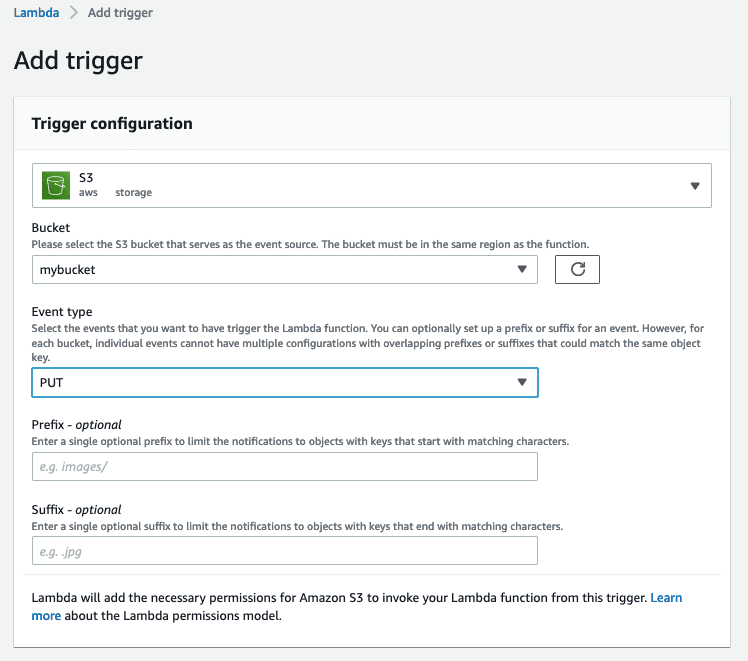
Nice, we are all set with our Lambda function, which uses the sharp Layer and creates thumbnail images. Please upload an image (jpg or png) to the source S3 bucket. Once the upload is complete, you should be able to see the thumbnail version of the image in the target S3 bucket.
Lambda Layer is a very efficient and convenient way to package libraries and other dependencies that you can use with your Lambda functions. It offers great benefits in reducing the deployment archives size and faster deployment. layers enable code sharing and separation of responsibilities to create maintainable Lambda functions.
In case you want to explore and learn more about best coding practices and code examples related to Lambda, you can check out the
If you have any questions related to this tutorial or have any feedback, please feel free to ping us on the
As this tutorial aims to explain and demonstrate the use of Lambda Layer, we didn't reinvent the wheel and write a new Lambda function to create thumbnail images. The Lambda function code used in this article to create thumbnail images is taken from this