Heads up! This article was written before Webiny 6.0 was released and may contain outdated information.

Albiona Hoti
Heads up! This article was written before Webiny 6.0 was released and may contain outdated information.
Webiny is the AI-programmable CMS that gives enterprises full control. Build, extend and automate your content operations with a platform designed to be shaped by both developers and AI agents.
AWS Lambda is a serverless compute service that lets you run code without provisioning or managing servers. You upload your code as a function, and Lambda automatically handles the execution based on event triggers.
"Serverless" doesn't mean there are no servers — it means developers don’t have to manage or provision them. AWS automatically handles infrastructure, scaling, and resource allocation behind the scenes, allowing you to focus on writing code.
Unlike traditional servers or containers that are always running, Lambda functions are event-driven and only run when triggered. This reduces cost and operational overhead, especially for applications with variable workloads.
Lambda can be triggered by over 50 AWS services, including S3 (e.g., file uploads), API Gateway (HTTP requests), DynamoDB (data changes), and SNS (notifications).
AWS Lambda supports several languages including JavaScript (Node.js), Python, Java, C#, Go, and Ruby.
The handler is the entry point for your Lambda function. It processes the input event and returns a response. For example, in Node.js, it’s typically written as exports.handler = async (event) => { ... }.
Earlier on the Webiny blog, we discussed Lambda is a compute service that lets you run code without provisioning or managing servers. —
In this article, we’ll provide a guide for beginners to get started with Lambda service, starting from the serverless architecture paradigm, where does Lambda come in? We’ll go through what is Lambda, the core parts of Lambda, Lambda invocation patterns, and Lambda Execution Models?
Last but not least, we'll do a hands-on Lambda by triggering a Lambda function in each S3 image file upload where you'll resize the image.
Let's dive in.
When starting with AWS Lambda there is a great chance you heard about Serverless! Serverless is the new application architecture paradigm that came up with the creation of the AWS Lambda service.
With serverless usually referred to as serverless applications, you will focus on the core product and business logic. Learn more about serverless on the Serverless Computing section in
Lambda is usually described as a type of serverless Function-as-a-Service(FaaS)* — a single unit acting as a service performing an action, no need for a server.
Lambda is a high-scale, provision-free serverless compute service, that is offered via functions. With Lambda you can build the cloud logic layer for your application. You can create Lambda functions in multiple programming languages, such as Java, Node.js, C#, Go.
Your code will be placed inside the Lambda function, and depending on the event source that will trigger the Lambda function, it will execute the code toward any service you want to connect your Lambda too, such as databases, data stores, or API endpoints.
Right now we mentioned three important steps of creating and using Lambda functions, those are the Event sources that trigger Lambda functions, the Code inside Lambda function, and the Services you connect with your Lambda function.
There are around 50 different event sources at AWS that directly invoke the Lambda function — these services represent different categories such as changes in data state, requests to endpoints, etc. Many event source options can trigger your Lambda function directly, check out the full list
The other side of the Lambda function are the services we mentioned, anything you would do when building an application elsewhere can be done inside Lambda as well. As we can see Lambda runs within a simplified architecture that looks like the image below.
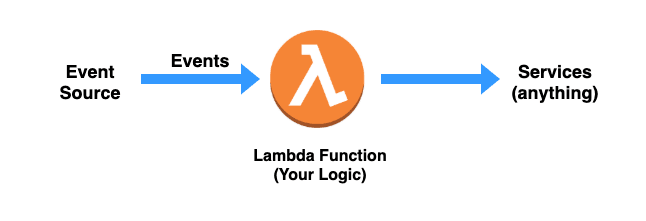
Fig 1: Simplified architecture of a running Lambda function
The Lambda runtime converts the event source into an object and passes it to your function, enabling you to build reactive, event-driven systems. When there are multiple, simultaneous events to respond to, Lambda simply runs more copies of the function in parallel.
Our goal is to learn the key components and features of Lambda, then followed by a real-world example of building serverless applications using Lambda. Now, we'll go through the core parts of Lambda that are the function code, event sources, and function configuration.
We mentioned that Lambda offers the ability to write code in different programming languages. You can also use different third-party libraries as part of your function code package. This function code package can hold up at the minimum your code you want the Lambda function to execute, and additional files, classes, and libraries that your code needs to import, manipulate, and execute. There is a limit size for the Lambda function that is a 50 MB compressed and 250 MB extracted.
When your Lambda function invokes, the code execution starts in the handler() function (Node,js, Python), the handler function is where your logic or the statements that call your logic would exist. The code you have inside the Lambda function can call other methods and functions within the files that you've uploaded in the function code package. You can import third-party libraries, install and execute them, also interact with other AWS services or doing API requests to third-party web services it depends on.
Creating a lambda func via the user interface on AWS console.
exports.handler = async (event, context, callback) => {
    // TODO implement
    const response = {
        statusCode: 200,
        body: JSON.stringify('Hello from Lambda!'),
    };
    return response;
    // callback parameter is optional
};
Once the handler is invoked inside your Lambda function, the runtime environment now belongs to the code you've written. After the Lambda runs the handler method, then the handler exits or returns a response, becoming available to handle another event.
The event object is one of the parameters provided to the handler function when the Lambda function is invoked. The event object can have a different structure and content based on the event source that creates the event. Your Lambda function will consume all the data and metadata it holds in the event parameter. Depending on the event source, let's say an API Gateway event will have information related to the HTTPS request such as the path, query-string, request body, whereas an event from S3 will have information related to the newly created object, and details about the bucket.
We mentioned that when once the handler is invoked inside the Lambda function, the runtime environment now belongs to the code inside our Lambda function, the context object, in this case, takes information about the actual environment that the lambda function is running in. Things like request ID log information, remaining time information memory, logging, and other things we can pass down.
There are two invocation methods for a Lambda function:
Push Model
It invokes Your Lambda function every time a particular event occurs within another AWS service, that event can be placed by an API Gateway request, a new object added to the S3 bucket or a new SNS notification. The data source gives a sign for Lambda to start invoking the Lambda function with the new data record.
Pull Model
Lambda pulls a data source and invokes your function with any new records that arrive at the data source, batching new records together in a single function invocation (for example, new records in an Amazon Kinesis or Amazon DynamoDB stream).
You can also run Lambda functions synchronously and asynchronously — by choosing the InvocationType parameter that's provided when invoking a Lambda function.
The InvocationType parameter offers you to choose between three values, and those are:
RequestResponse — Executing synchronouslyEvent — Executing asynchronouslyDryRun — Test that the invocation is permitted for the called, but don't execute the function.The event sources are the ones that decide how your Lambda function will be invoked. We'll go through Lambda use cases, and in there mention the invocation type as well.
As you dive into AWS services, you'll get the idea of how different services can be used together to solve a digital problem and provide value for your customers.
The key parts of a lambda function are triggers and the functions.
A trigger is the AWS service or application that invokes a Lambda function, and the Lambda function is the code or runtime that processes events.
Let's go through types and use-cases you can build using AWS Lambda.
File processing
S3 event notifications can be used to invoke Lambda functions as they are published.
Data and analytics
Invocation Model: Push
Invocation Type: Event or RequestResponse
When you build up your APIs methods, you can use Lambda functions as the backend services. Choosing Lambda as the integration type for an API method, your Lambda function is invoked synchronously — acting as a response for the API request.
Use Cases
Now that we learned what is Lambda and the core parts, let's learn how to use lambda with S3 storage by code.
There are plenty of ideas you can start with AWS Lambda, for this article, we'll use the AWS Lambda with AWS S3 storage. We already published a
Now that we've learned two AWS services, the S3 and the AWS Lambda, we are going to use the two of them to understand how those can interact with each other to build different use cases we plan to.
We mentioned the use cases for Lambda and S3 on creating image modifications such as thumbnails, different resolutions, watermarks, for images that you upload to an S3 bucket through your application. Processing the data that are uploaded to the S3 bucket and then moving those to another S3 bucket as part of a larger data pipeline.
In this article we're going to do just that, we're going to resize for each image file that is uploaded to a bucket.
:::note The example below is inspired by the AWS docs.* :::
AWS Lambda Resources:
IAM Resources:
S3 Resources:
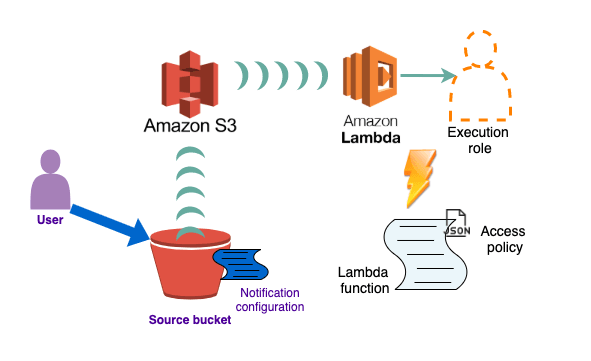
The below diagram shows the connection between the user, that creates an object in an S3 bucket, then the S3 detection of the created event, S3 invoking the Lambda function using the execution role permissions, and then the Lambda function.
Open the
You'll create two buckets
lambdatestingimage-resized bucket
lambdatestingimage-resized, that will come from the base bucket name image where image is the name of the bucket you use for the uploading the images.lambdatestingimage bucketIn the lambdatestingimage bucket, upload a .jpg object, ExampleImg.jpg
When you invoke the Lambda function manually before connecting to the S3 bucket, you'll pass mock data to the function specifying the image bucket and the ExampleImg.jpg as the newly created object.
For us to manipulate the data in S3 with our Lambda function, we need to create an IAM policy defining the permissions for the Lambda function. That means having the chance to get the object from the image S3 bucket, add the image-resized object into the target S3 bucket, and add the permissions for the CloudWatch Logs.
Create policy button.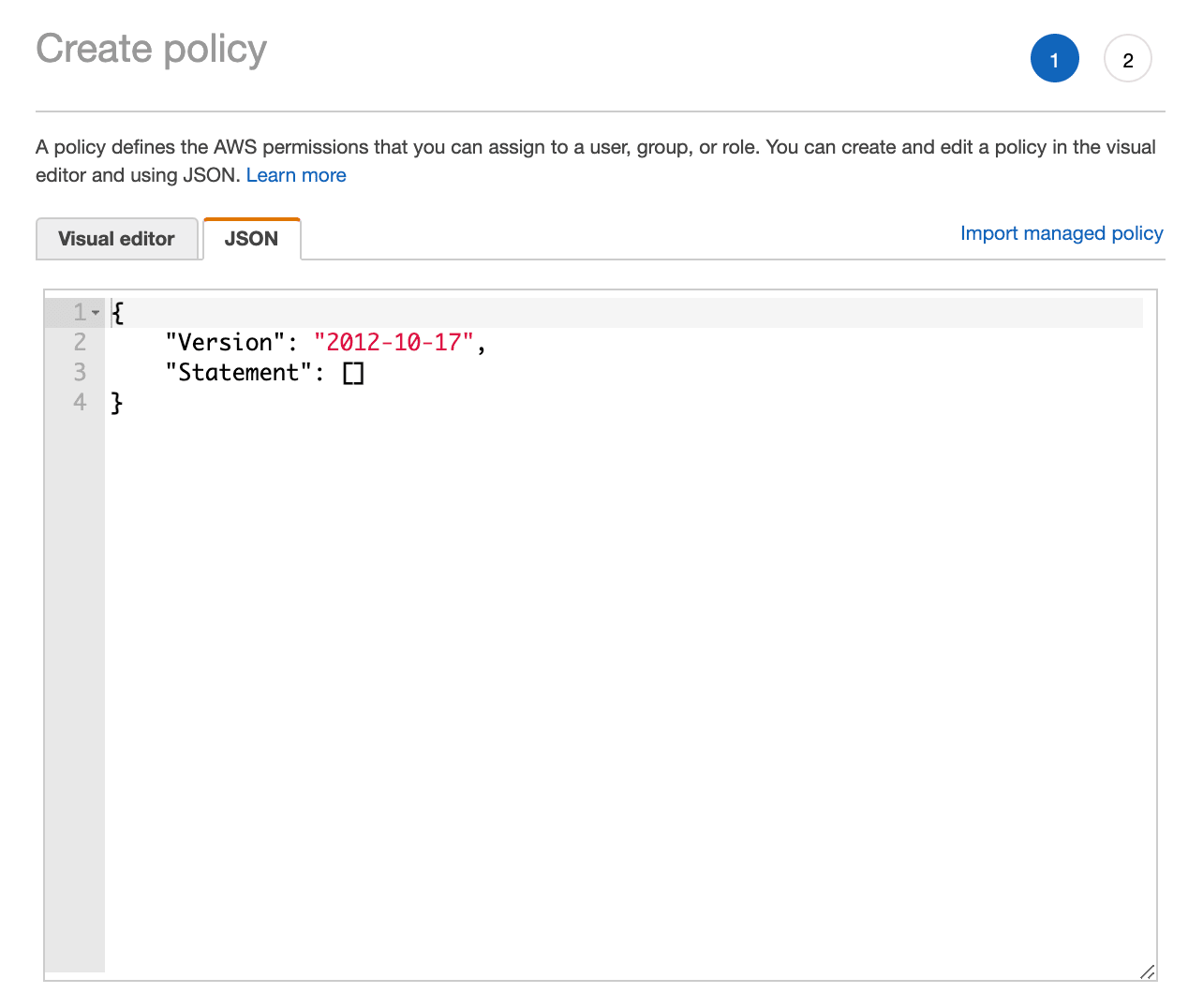
Review policy, give it a name such as AWSLambdaS3Policy and create the policy.:::note Remove the comments in the JSON file below when you paste the policy. :::
{
    "Version": "2012-10-17",
    "Statement": [
        {
            "Effect": "Allow",
            "Action": [
                "logs:PutLogEvents",
                "logs:CreateLogGroup",
                "logs:CreateLogStream"
            ],
            "Resource": "arn:aws:logs:*:*:*"
        },
        {
            "Effect": "Allow",
            "Action": [
                "s3:GetObject"
                // This is the GetObject action which allows us to get the base `image` bucket.
            ],
            "Resource": "arn:aws:s3:::lambdatestingimage/*"
        },
        {
            "Effect": "Allow",
            "Action": [
                "s3:PutObject"
            ],
            "Resource": "arn:aws:s3:::lambdatestingimage-resized/*"
            // This is the PutObject which allows us to add the new object to the `image-resized` bucket.
        }
    ]
}
The execution role grants permissions to AWS Lambda to access different AWS services and resources. Provide the role when you create a function, then the Lambda function assumes the role when the function is invoked.
Let's create the execution role.
Create roleAWSLambdaS3Policylambda-s3-role:::note
Remember, we created the policy AWSLambdaS3Policy in the above step. This policy has the permissions that the function needs to manage objects in S3.
:::
Now, we'll create the lambda function to resize the images from one S3 bucket, and put the new image to another S3 bucket.
Create an index.js file, and copy/paste the below snippet, you'll find comments throughout the code that will explain what's happening. For your information, the
// dependencies
const AWS = require('aws-sdk');
const sharp = require('sharp');

// get reference to the S3 client
const s3 = new AWS.S3();

exports.handler = async (event, context, callback) => {

    // Read options from the event parameter.
    console.log("Event:\n", event);
    const imgBucket = event.Records[0].s3.bucket.name;
    // Object key may have spaces or unicode non-ASCII characters.
    const imgKey    = decodeURIComponent(event.Records[0].s3.object.key.replace(/\+/g, " "));
    const targetBucket = imgBucket + "-resized";
    const targetKey    = "resized-" + targetKey;

    // Infer the image type from the file suffix.
    const typeMatch = imgBucket.match(/\.([^.]*)$/);
    if (!typeMatch) {
        console.log("Could not determine the image type.");
        return;
    }

    // Check that the image type is supported
    const imageType = typeMatch[1].toLowerCase();
    if (imageType != "jpg" && imageType != "png") {
        console.log(`This image type is not supported: ${imageType}`);
        return;
    }

    // Download the image from the S3 source bucket.
    try {
        const params = {
            Bucket: imgBucket,
            Key: imgKey
        };
        var origimage = await s3.getObject(params).promise();
        // getObject, the action we mentioned in the IAM policy.

    } catch (error) {
        console.log(error);
        return;
    }

    // set the image width. Resize will set the height automatically to maintain the aspect ratio.
    const width  = 200;

    // Use the Sharp module to resize the image and save it in a buffer.
    try {
        var buffer = await sharp(origimage.Body).resize(width).toBuffer();

    } catch (error) {
        console.log(error);
        return;
    }

    // Upload the newly image to the destination bucket
    try {
        const destparams = {
            Bucket: targetBucket,
            Key: targetKey,
            Body: buffer,
            ContentType: "image"
        };

        const putResult = await s3.putObject(destparams).promise();
        // the putObject action we mentioned in the IAM policy
    } catch (error) {
        console.log(error);
        return;
    }

    console.log('The image was resized successfully: ' + imgBucket + '/' + imgKey +
        ' and uploaded to ' + targetBucket + '/' + targetKey);
};
npm install --arch=x64 --platform=linux --target=12.13.0 sharp
npm install sharp
zip -r function.zip .
create-function command:NOTE: Replace the 123456789012 with your AWS account ID — which can be found in the upper right corner, clicking on the My Security Credentials, then click on Account identifiers and there you'll find the AWS Account ID
aws lambda create-function --function-name CreateThumbnail \
--zip-file fileb://function.zip --handler index.handler --runtime nodejs12.x \
--timeout 10 --memory-size 1024 \
--role arn:aws:iam::123456789012:role/lambda-s3-role
:::note
If you're using AWS CLI version 2, add the following command parameters:
-cli-binary-format raw-in-base64-out
:::
Create a new txt file as inputFile.txt and copy/paste the below JSON snippet, don't forget to replace the source bucket name with your source bucket name.
— You can see that there is the file we uploaded to the S3 bucket the ExampleImg.jpg
— Replace that with the image that you've uploaded, if you did change the name.
{
    "Records":[
        {
            "eventVersion":"2.0",
            "eventSource":"aws:s3",
            "awsRegion":"global",
            "eventTime":"1970-01-01T00:00:00.000Z",
            "eventName":"ObjectCreated:Put",
            "userIdentity":{
            "principalId":"AIDAJDPLRKLG7UEXAMPLE"
            },
            "requestParameters":{
            "sourceIPAddress":"127.0.0.1"
            },
            "responseElements":{
            "x-amz-request-id":"C3D13FE58DE4C810",
            "x-amz-id-2":"FMyUVURIY8/IgAtTv8xRjskZQpcIZ9KG4V5Wp6S7S/JRWeUWerMUE5JgHvANOjpD"
            },
            "s3":{
            "s3SchemaVersion":"1.0",
            "configurationId":"testConfigRule",
            "bucket":{
                "name":"lambdatestingimage", // replace the image here
                "ownerIdentity":{
                "principalId":"A3NL1KOZZKExample"
                },
                "arn":"arn:aws:s3:::lambdatestingimage" // replace the image here
            },
            "object":{
                "key":"ExampleImg.jpg", // here is the image you have uploaded
                "size":1024,
                "eTag":"d41d8cd98f00b204e9800998ecf8427e",
                "versionId":"096fKKXTRTtl3on89fVO.nfljtsv6qko"
            }
        }
    ]
}
Now, you'll run the invoke command to invoke the function by running this command:
aws lambda invoke --function-name CreateThumbnail --invocation-type Event \ --payload file://inputFile.txt outputfile.txt
NOTE: if you're using AWS CLI version 2, add the following command parameters:
--cli-binary-format raw-in-base64-out
And the result should be as in the image below:

In this step, you add the remaining configuration so that Amazon S3 can publish object-created events to AWS Lambda and invoke your Lambda function. You do the following in this step:
Add the permissions to the function policy by running the following Lambda CLI add-permission to perform lambda:InvokeFunction action.
Run the below command, by replacing the sourcebucket into your base bucket name, and the account-id into your account id number.
aws lambda add-permission --function-name CreateThumbnail --principal s3.amazonaws.com \
--statement-id s3invoke --action "lambda:InvokeFunction" \
--source-arn arn:aws:s3:::sourcebucket \
--source-account account-id
aws lambda get-policy --function-name CreateThumbnail
We'll add notification configurations to the source S3 bucket, to request S3 to publish object-created events to Lambda. Follow the below steps to achieve that.
To configure notifications
lambda-trigger.All object create events.Lambda function.CreateThumbnail.Now you can test the setup as follows:
.jpg or .png objects to the source bucket using the Amazon S3 console.CreateThumbnail function.Lambda's are serverless functions — meaning you'll put your code into lambda function without the need to set up servers.
With Lambda you don't need to worry about underlying architecture.
Pricing — you'll pay per invocation that includes the duration and the amount of memory used. Follow the
You can trigger Lambda from the SDK or multiple AWS services, S3, API Gateway, DynamoDB.
Function size and cold start
The first cold start happens when the first request is made after the deployment. How long is the cold start duration?
The larger the function in size, the longer the cold start! is mentioned in the
Warm Start
After the cold start happens, the lambda will remain instantiated for a while, around 5 minutes, which allows other calls to be done without the need for another initialization. The calls that are made during this period are called warm call — meaning the code is loaded into the memory and ready to be executed when the Lambda is called one or several times.
Concurrency
Concurrency is the number of requests that your function is serving at any given time. When your function is invoked, Lambda allocates an instance of it to process the event. When the function code finishes running, it can handle another request. If the function is invoked again while a request is still being processed, another instance is allocated, which increases the function's concurrency. — Source.
Runtime
There are 7 predefined runtimes for NodeJs, .NET, Java, C#, Ruby, Powershell, and Go.
Customize for your case, build the runtime to support any programming language.
AWS offers a free tier for all its services, even though they provide automatic scaling for each service, you'll pay for on-demand usage. We give more details on pricing in our blog of
Now that you have a thorough understanding of AWS Lambda compute service, from the core parts of the service to the way Lambda functions are triggered. The function in JavaScript on delivering data through the Event object, and manipulating data from one S3 bucket to another.
If you're interested to learn more, here are some blogs we suggest by Webiny on AWS.
If you learned something new today and are interested to follow up on our blogs,
Thanks for reading! My name is Albiona and I work as a developer relations engineer at