Release Notes > 6.5.1
Webiny 6.5.1 Changelog
See what's new in Webiny version 6.5.1
 release on GitHub.
Headless CMS
New Step-by-Step Birthday Picker for Date Fields (#6035)
A new step-by-step birthday picker component is now available for date fields in the Headless CMS. This picker guides users through selecting month, day, and year in sequence, providing a more intuitive experience for birthday and date-of-birth inputs compared to the standard calendar picker.
Fixed Rich Text Field Not Saving When Cleared (#6094)
Clearing a Lexical rich text field that started empty would fail to save the cleared state. If you typed into an empty field and then deleted all the text, the form would save the last text you had typed instead of the empty value. This affected both Headless CMS and Website Builder rich text fields. The editor’s change handler now correctly detects when a previously-empty field has been cleared.
Bulk Actions No Longer Abort When a Single Item Fails (#5935)
Previously, if one item failed during a bulk action (publish, unpublish, move, delete, or duplicate), the entire operation would abort—skipping all remaining items and never showing the results dialog. Now, each item’s error is caught and recorded as a failure in the results report, while processing continues for all other selected items. The selection is cleared and the results dialog opens as expected.
This applies to all built-in bulk actions for both pages and content entries. Custom bulk actions built on Worker or BulkActionRunner also inherit this behavior automatically.
Tenant Renames Now Sync to the Platform (#6102)
Renaming a tenant or changing its description in Tenant Manager now properly updates the tenant across the platform. Previously, edits were saved to the CMS entry but not propagated to the core tenant record, so the platform kept displaying the old name. A new handler now syncs name and description changes automatically after each entry update.
Fixed "Save & Publish" Not Working on Workflow-Approved Entries (#6121)
Clicking “Save & Publish” on a content entry that had been approved through a workflow would do nothing. The button now correctly publishes the entry and displays as “Publish” (since a locked entry cannot be saved, only published).
Admin
Admin Users Now Land in Their Tenant After Login (#6100)
Admin users who open the admin app without a ?tenantId= parameter now land in a tenant where they have access. Previously, a Cognito user whose record existed only in a sub-tenant would sign in on root, receive a NotAuthorized error, and fail silently. Now:
- If the user has access to exactly one tenant, they’re redirected there automatically
- If the user has access to multiple tenants, a tenant picker is displayed
- If the user has no tenant access, a “no access” screen appears with a Sign out option
Additionally, one Cognito account can now be shared across multiple tenants for the same person:
- A “Switch tenant” item appears in the user menu for users with access to multiple tenants
- Deleting a user preserves the Cognito account if the user still exists in another tenant
- Admins can link an existing person to their tenant using the new “Link existing user” action in the user form
Federated/SSO users continue to log in as before. This change primarily affects native Cognito authentication.
GraphQL schema change: The SecurityIdentityLoginResponse.data field is now a union type. Clients that select fields on login.data directly must switch to using ... on SecurityIdentity fragments:
mutation Login {
  security {
    login {
      data {
        ... on SecurityIdentity {
          id
          displayName
          tenants {
            id
            name
          }
        }
        ... on SecurityLoginTenantSelection {
          tenants {
            id
            name
          }
        }
      }
    }
  }
}
Breaking for custom storage implementations: AdminUsersStorageOperations now requires two new methods:
getUserAcrossTenants({ id, tenants })— retrieves user records across specified tenantslistUserRecords({ id })— lists all tenant records for a user
Breaking for custom Cognito implementations: CognitoService.userExists() has been replaced by getUser(), which returns the account’s attributes (or null if not found).
Improved Switch Component Layout (#6103)
The Switch component now renders its label above the control, matching the layout of other form fields like Input, Textarea, and Select. Previously, the label appeared inline on the same row as the toggle, causing alignment issues when switches were mixed with other fields in forms.
Additional changes:
descriptionnow renders as text under the label instead of in a tooltiphintnow appears as the label’s tooltip- Clicking the label still toggles the switch as expected
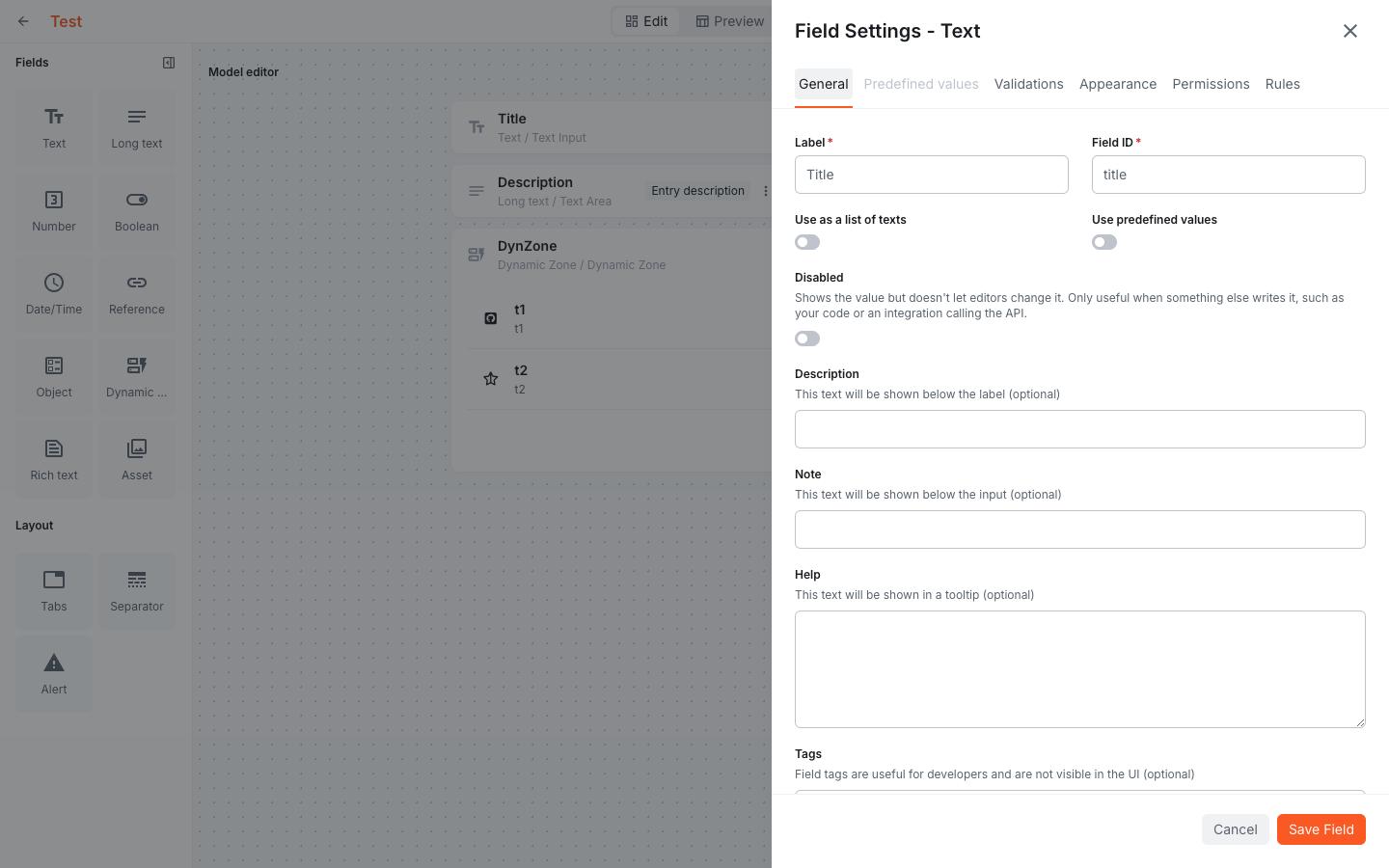 Switches in the field settings dialog, with the label and description above the control
The inline label style is still available via SwitchPrimitive for cases like accordion headers where horizontal layout is preferred.
Fixed "New User" Form Pre-Populated With Previous User's Data (#6121)
When creating a new admin user, the form would incorrectly display data from the previously selected user. This has been fixed — the “New” action now opens a blank form as expected.
Website Builder
Fixed "Translate" Action Missing Without AI Powerups License (#6123)
Since 6.5.0, the Translate action in the page list options menu was only visible to users with the AI Powerups license for page translation. This prevented users without AI Powerups from using the manual translation workflow — copying a page into another language and translating the content by hand.
The action now appears for all users with multi-tenancy enabled (which includes the Languages feature). The behaviour depends on your license:
- With AI page translation: The page is copied and its title, snippet, and text bindings are automatically translated.
- Without AI page translation: The page is copied into the target language and left for manual translation.